Amber Virtual Airlines · Amber Pilot
Amber Pilot
The full guide to one app for VFR and IFR.
From installation and your first flight to filing the PIREP and the flight review. Each time it starts, you choose how you fly today.
VFR and IFRMSFS 2024X-Plane 12MSFS 2020
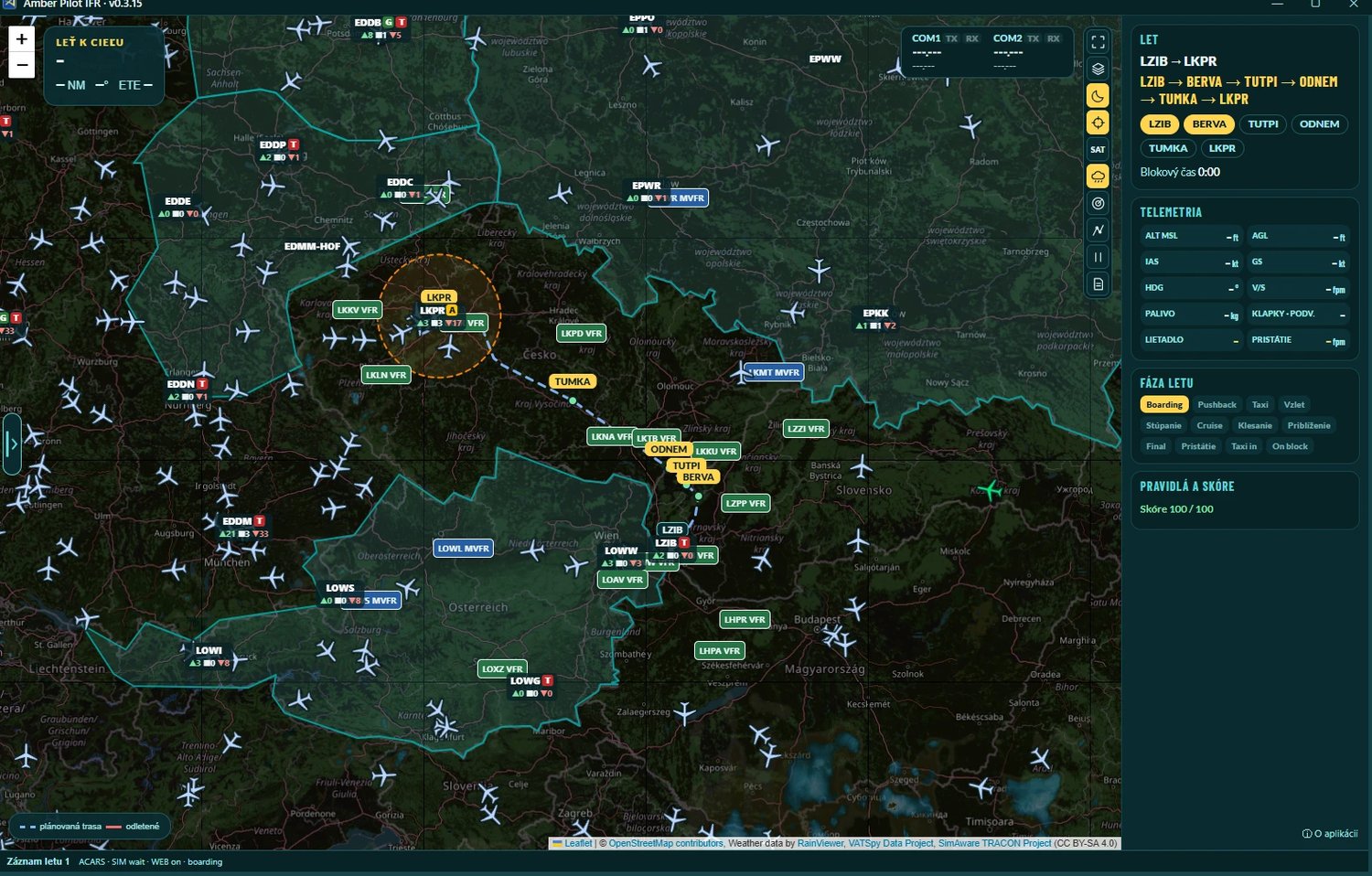
Installation and first start
1 · Download and install
- Download the installer and run it.
- If Windows SmartScreen appears, click More info and Run anyway.
- Updates arrive by themselves. The installer offers a desktop icon, starting together with MSFS 2024 and 2020, and starting the app when it finishes. Run it again to update the app, you can keep, change or turn off the auto-start. You can uninstall it there or in Windows Settings.
2 · Open and choose the mode
- Open Amber Pilot from the desktop icon.
- Choose VFR or IFR. You get this choice each time it starts.
- To change the mode use the ⇄ button next to the gear, except during a flight.
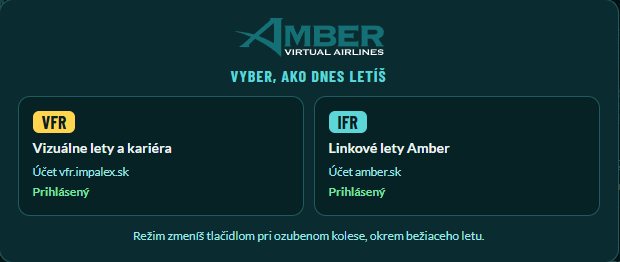
3 · Sign in
- VFR: e-mail or pilot number and password from vfr.impalex.sk.
- IFR: click ⚙ and paste the API key from your amber.sk profile.
- The key is stored encrypted on your PC only.
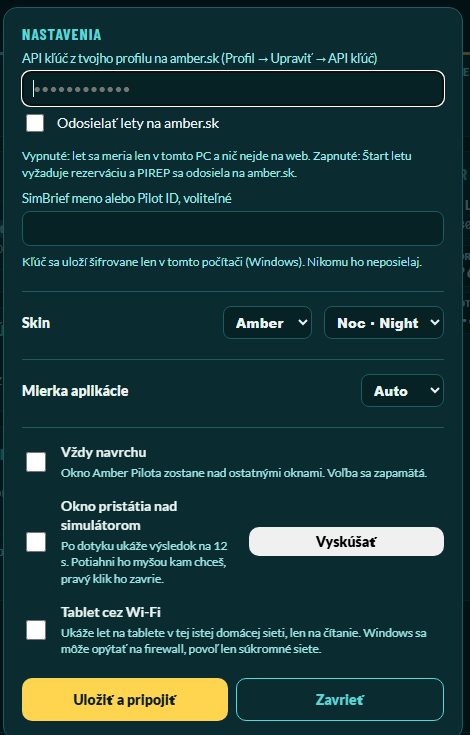
4 · Connect the simulator
- Start the simulator, Amber Pilot connects by itself. The status is at the bottom left of the app.
- MSFS 2024: nothing else to install.
- MSFS 2020: nothing else to install, support is in testing. Please report any problem.
- X-Plane 12: version 12.1.1 or newer, no plugin needed. In Settings → Network, Disable Incoming Traffic must be off.
IFR flight step by step
1 · Pick a flight
- In My flights click Pick a flight.
- Choose a flight, tour or Real flight and click Book.
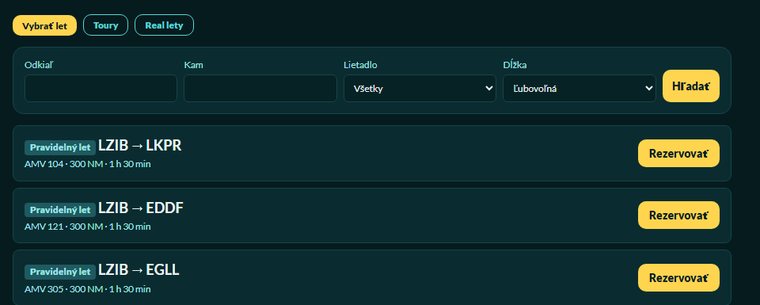
2 · Generate the OFP
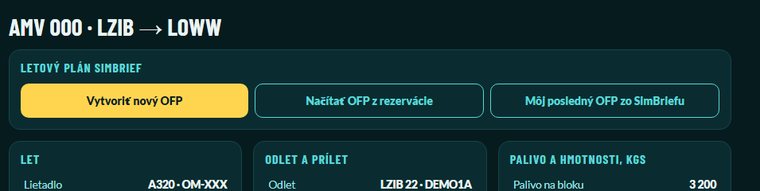
- In Briefing click Generate new OFP.
- Generate the plan, the window closes and the OFP loads.
- The backup is My latest SimBrief OFP.
3 · Prefile
- For an online flight click Prefile next to your network: VATSIM, IVAO and others.

4 · Fly and file the PIREP
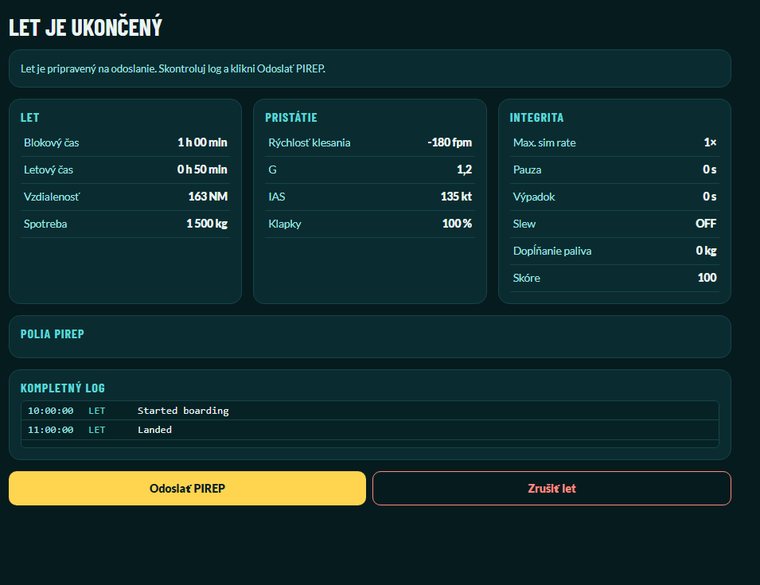
- Click Start flight, the app opens the PIREP.
- After engines and beacon are off, check the log and click File PIREP.
- Then choose the review in the app or on amber.sk.
VFR career
Jobs
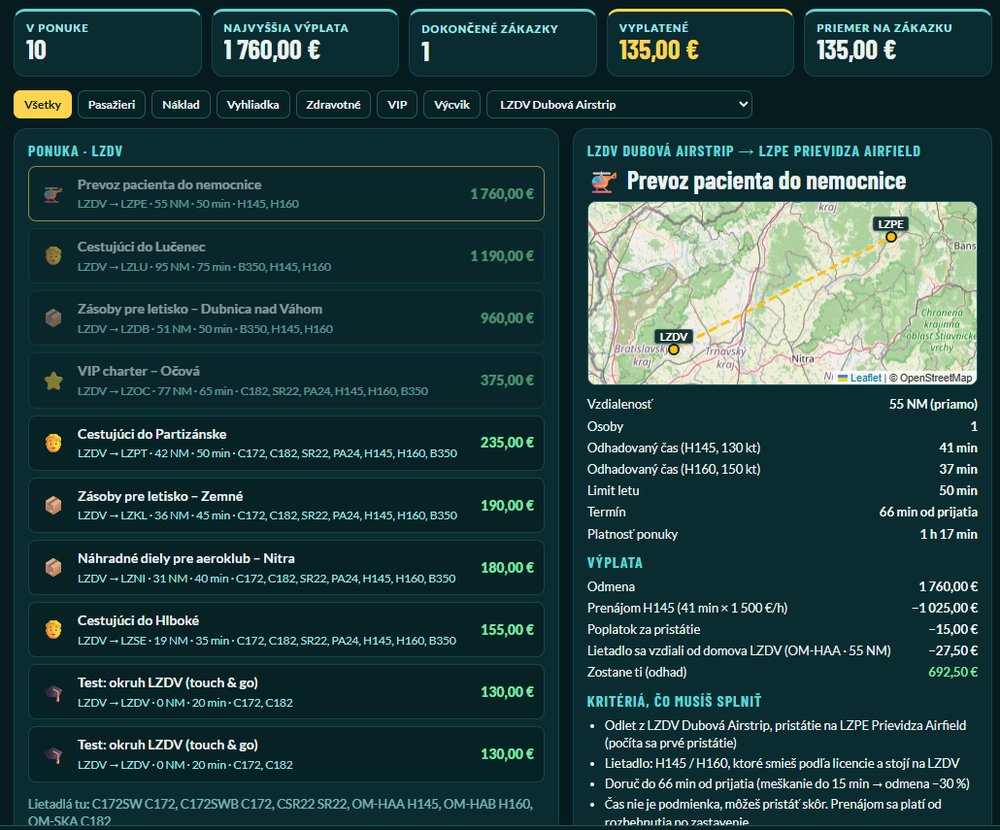
- In Jobs pick a flight by licence and aircraft.
- You see the route, pay and criteria.
Pilot overview
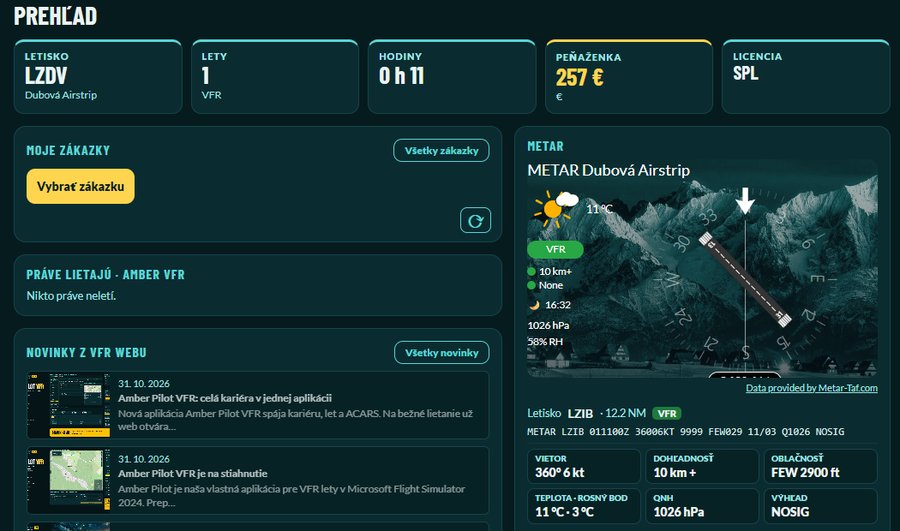
- Airport, flights, hours, wallet and licence in one place.
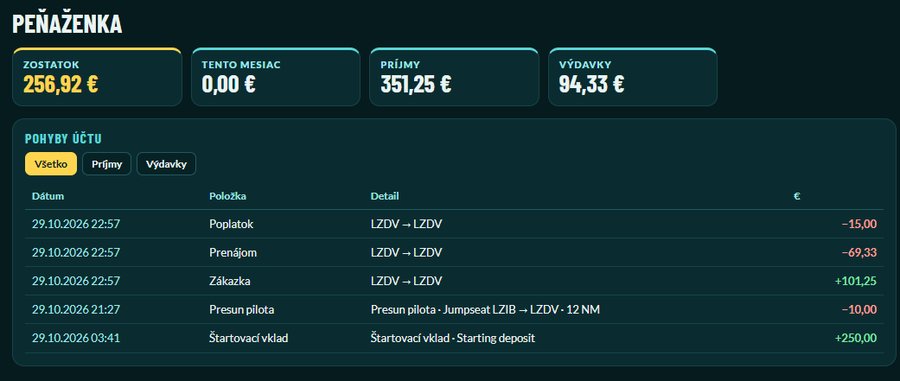
Wallet
- Every income and expense: jobs, rental, fees.
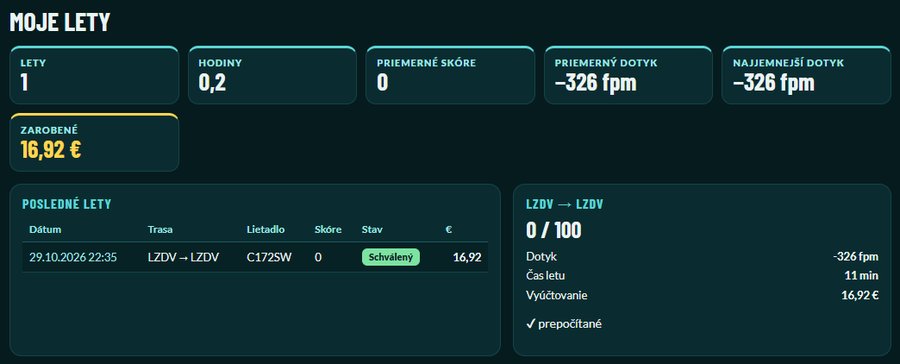
My flights
- Flights, score, touchdown and money earned.
Skin and look
How to change the skin
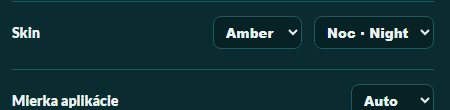
- Click ⚙ and under Skin choose Amber, Bronze or Blue.
- Next to it choose Night or Day. The change applies at once.
Settings ⚙
- Send flights: on means PIREP to the website, off means measuring on your PC only.
- SimBrief: username or Pilot ID for your latest OFP.
- App scale: Auto or 70 to 120 %.
- Always on top: the window stays above others.
- Landing window: shows the result for 12 s above the simulator after touchdown.
- Tablet over Wi-Fi: the flight on a tablet on your home network through a QR code, read only.
In testing: vmsACARS stays in service. Do not use both on the same flight.
Found a bug? Take a screenshot and post it with a short description in the amber-pilot-help Discord channel, and we will fix it.
Amber Virtual Airlines · Amber Pilot
Amber Pilot
Celý návod na jednu aplikáciu pre VFR aj IFR.
Od inštalácie cez prvý let až po odoslanie PIREP-u a vyhodnotenie. Pri každom spustení si vyberieš, ako dnes letíš.
VFR a IFRMSFS 2024X-Plane 12MSFS 2020
Inštalácia a prvé spustenie
1 · Stiahni a nainštaluj
- Stiahni inštalátor a spusť ho.
- Ak sa objaví Windows SmartScreen, klikni Ďalšie informácie a Spustiť aj tak.
- Aktualizácie prídu samé. Inštalátor ponúkne ikonu na ploche, spúšťanie spolu s MSFS 2024 a 2020 a spustenie po inštalácii. Znova spustený inštalátor aplikáciu aktualizuje, automatický štart pri tom môžeš ponechať, zmeniť alebo vypnúť. Cez inštalátor aj v Nastaveniach Windows ju odinštaluješ.
2 · Otvor a vyber režim
- Otvor Amber Pilot z ikony na ploche.
- Vyber VFR alebo IFR. Výber sa ponúkne pri každom spustení.
- Režim zmeníš tlačidlom ⇄ pri ozubenom kolese, okrem bežiaceho letu.
3 · Prihlás sa
- VFR: e-mail alebo číslo pilota a heslo z vfr.impalex.sk.
- IFR: klikni ⚙ a vlož API kľúč z profilu na amber.sk.
- Kľúč sa uloží šifrovane len v tvojom PC.
4 · Pripoj simulátor
- Spusti simulátor, Amber Pilot sa pripojí sám. Stav vidíš vľavo dole v aplikácii.
- MSFS 2024: netreba nič ďalšie inštalovať.
- MSFS 2020: netreba nič ďalšie inštalovať, podpora je v testovaní. Prípadný problém nahlás.
- X-Plane 12: verzia 12.1.1 alebo novšia, bez pluginu. V Settings → Network musí byť vypnuté Disable Incoming Traffic.
IFR let krok za krokom
1 · Vyber let
- V Moje lety klikni Vybrať let.
- Vyber let, touru alebo Real let a klikni Rezervovať.
2 · Vytvor OFP
- V Briefingu klikni Vytvoriť nový OFP.
- Vygeneruj plán, okno sa zavrie a OFP sa načíta.
- Záloha je Môj posledný OFP zo SimBriefu.
3 · Prefile
- Pri online lete klikni Prefile pri svojej sieti: VATSIM, IVAO a ďalšie.
4 · Leť a odošli PIREP
- Klikni Štart letu, aplikácia založí PIREP.
- Po vypnutí motorov a beaconu skontroluj log a klikni Odoslať PIREP.
- Potom vyber vyhodnotenie v aplikácii alebo na amber.sk.
VFR kariéra
Zákazky
- V Zákazky vyber let podľa licencie a lietadla.
- Vidíš trasu, výplatu a kritériá.
Prehľad pilota
- Letisko, lety, hodiny, peňaženka a licencia na jednom mieste.
Peňaženka
- Každý príjem a výdavok: zákazky, prenájom, poplatky.
Moje lety
- Lety, skóre, dotyk a zarobené peniaze.
Skin a vzhľad
Ako zmeniť skin
- Klikni ⚙ a v časti Skin vyber Amber, Bronze alebo Blue.
- Vedľa zvoľ Noc alebo Deň. Zmena sa prejaví hneď.
Nastavenia ⚙
- Odosielať lety: zapnuté znamená PIREP na web, vypnuté len meranie v PC.
- SimBrief: meno alebo Pilot ID pre tvoj posledný OFP.
- Mierka aplikácie: Auto alebo 70 až 120 %.
- Vždy navrchu: okno ostane nad ostatnými.
- Okno pristátia: po dotyku ukáže výsledok na 12 s nad simulátorom.
- Tablet cez Wi-Fi: let na tablete v domácej sieti cez QR kód, len na čítanie.
Testovacia fáza: vmsACARS ostáva v prevádzke. Nepoužívaj obe naraz na ten istý let.
Našiel si chybu? Odfoť ju a s krátkym popisom pošli do Discord kanála amber-pilot-help, budeme ju riešiť.
Updated 01 Nov 2026

